From an Agent Request to a Reviewed SceneRender Edit
Follow an actual SceneRender edit repair to see how an outside agent checks a timeline, makes a bounded change, and returns a video for review.
The SceneRender MCP Door lets a connected AI assistant work on your SceneRender account through supported tools. You describe the outcome in your assistant's chat; the connection gives it ways to inspect your media, ask Spark for proposals and work in the Editor.
That can be useful when you already know what needs fixing. Instead of rebuilding an entire video, the assistant can inspect the existing timeline and make a specific, reviewable change.
Connect the assistant you already use
Follow the current Agents through the door guide. SceneRender's account menu has a Connect an agent page. The documented connection route differs between assistants: web-based connections use an authorization flow, while supported desktop or coding clients may use a connection key.
Use the instructions for your actual client. Keep a key out of prompts, screenshots and published examples. The connection page also provides a way to inspect connected agents and disconnect one.
You do not need to start with an autonomous production job. A read-only request to inspect the available media and explain a plan is a useful first step.
An actual edit problem from our work
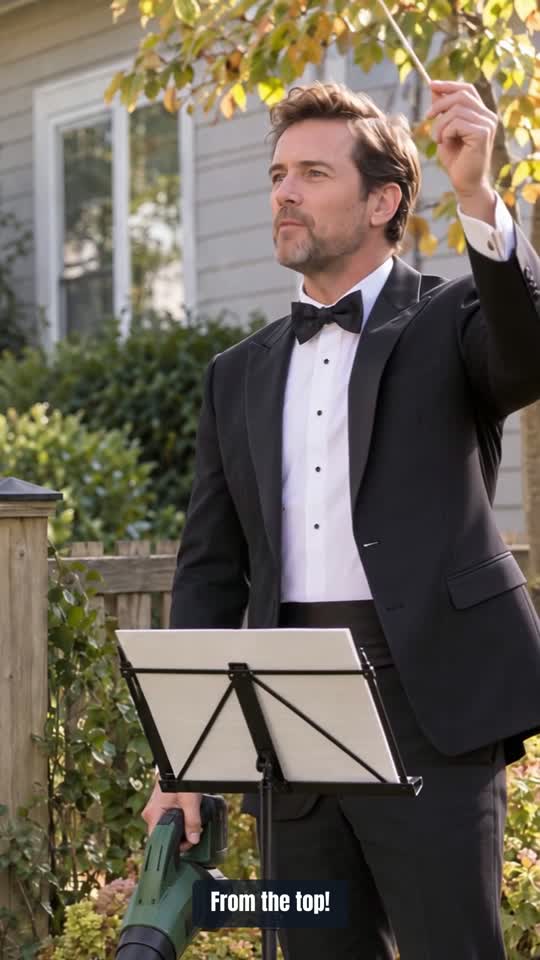
In a short we made on November 22, a leaf-blower operator dressed as a conductor announces “From the top!” The neighbor's reaction completes the joke. During review, we spotted an unnatural hand movement as the neighbor lowered her hand toward a paper program.
The concept, sound and thumbnail were already working. We first tested an Editor repair using the existing footage. No replacement media was generated for the successful repair.
Our assistant copied the edit so the earlier version remained available as history, then used these specific changes:
| Part of the finished timeline | Actual change |
|---|---|
| 4.7–12.6 seconds | A 1.8x reframe focused on the conductor, keeping the bad hand movement out of view. |
| At 12.6 seconds | A straight cut back to the original wide composition. |
| 12.6–14.7 seconds | The neighbor's stable two-handed grip, program fold and live reaction remained visible. |
| 14.7–17.2 seconds | The existing ending card stayed in place. |
The change used the native Editor's split, framing and join controls. The finished length remained 17.2 seconds. The same dialogue source, music and caption timing stayed in the timeline; this was a framing repair, not newly generated performance.
What the assistant checked
The agent read the timeline before changing it, then checked the new rendered file. We inspected every decoded frame around the return to the wide shot and through the retained hand-and-program movement, rather than relying on a few stills spaced far apart.
Technical checks confirmed that the repaired export decoded cleanly and contained audio. The review notes stated the limits too: those checks did not replace continuous human playback or certify lip-sync. The owner reviewed the revised video and matching thumbnail before approving the creative.
The handoff identified the exact version and file hashes so the earlier broken version would not be mistaken for the approved one. That is useful whenever several revisions have similar names.
Give the agent a bounded first task
Here is an illustrative request you can adapt; it is not the original production prompt:
Inspect my existing edit without making new media. Explain which source clips and captions it uses, then propose the smallest change that addresses the problem I described. Preserve the original version and return the rendered result for my review. Quote any new generation separately before running it.
The supported tool list is the boundary of what the connection can do. Our workflow used timeline readback, a copied edit, native Editor changes and a new render. It did not require a new voice, soundtrack or AI-generated transition.
Keep creative review and release separate
The Spark guide and agent documentation describe actions the SceneRender assistant leaves to the person, including publishing. A separate social scheduling service is another connection and another task; creating or approving an edit is not proof that a social post has been released.
Review the finished file first. When the result is right, hand over that exact approved version for the next step. For a starting checklist, see our short-video review guide, then use the current connection instructions for the assistant you want to work with.